n8n Instagram Graph API Node: Complete Setup & Automation Guide (2026)
If you've been searching for a clear, no-fluff guide to connecting Instagram's Graph API inside n8n — you're in the right place. The combination of n8n and the Instagram Graph API is one of the most powerful setups available to marketers, developers, and agencies who want to automate Instagram without paying for expensive SaaS tools or writing custom backend code from scratch.
But it's also genuinely confusing to set up. Between Meta's developer portal, access tokens, the Facebook Graph API node in n8n, community-built Instagram nodes, and Instagram's own permission requirements — there are a lot of moving parts. Most tutorials skip the hard parts and leave you stuck with a "Bad Request" error and no idea why.
This guide covers everything from scratch: what n8n is, which node to use for Instagram, how to configure your Meta app credentials correctly, how to build working automation workflows, real use cases with step-by-step logic, common errors and how to fix them, and the community nodes that extend what n8n's built-in node can do.
What Is n8n and Why Use It for Instagram Automation?
n8n (pronounced "n-eight-n") is an open-source, fair-code workflow automation platform that lets you connect apps, APIs, and services through a visual node-based editor. Think of it as a self-hostable alternative to Zapier or Make — but with significantly more technical flexibility, no per-task pricing, and the ability to run it entirely on your own infrastructure.
Key reasons developers and marketers choose n8n for Instagram automation:
No per-task pricing — unlike Zapier which charges per workflow execution, n8n's self-hosted version costs nothing beyond hosting (typically $5–20/month on a VPS), and n8n Cloud starts at $20/month with generous execution limits
Full API access — through the built-in Facebook Graph API node and HTTP Request node, you can call any Instagram Graph API endpoint without being limited to pre-built integrations
Self-hostable — your credentials and data stay on your own server, which matters when handling business Instagram tokens and customer data
500+ native integrations — connect Instagram workflows directly to Google Sheets, Notion, Airtable, Slack, HubSpot, OpenAI, and hundreds of other tools
Code nodes — when drag-and-drop isn't enough, drop into JavaScript or Python directly inside your workflow for custom logic
Community nodes — the n8n ecosystem includes community-built nodes specifically for Instagram that extend the platform's native Instagram capabilities significantly
The result: you build Instagram automation workflows once, they run continuously, and you maintain full control over the logic, data, and cost.
The Instagram Graph API Node Options in n8n
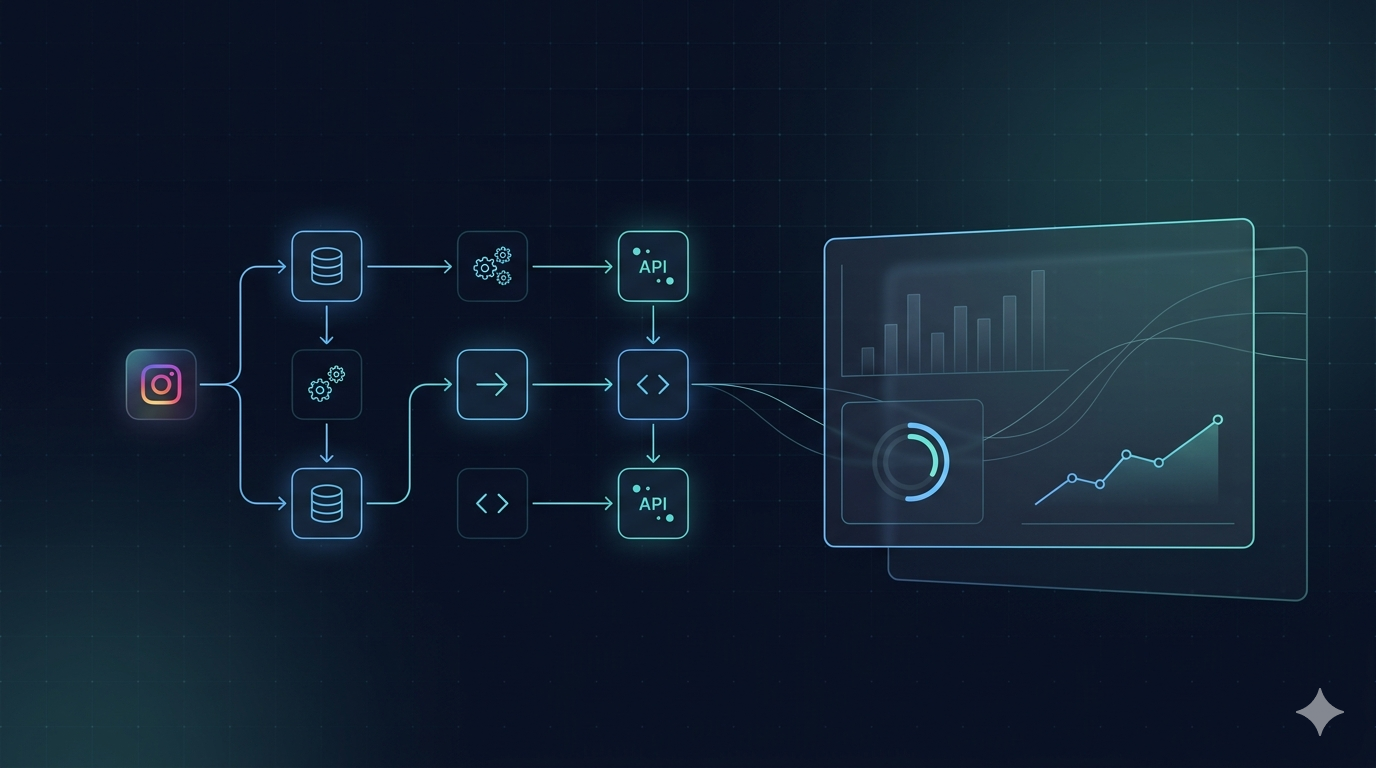
Here is where most guides create confusion: n8n does not have a single, dedicated "Instagram" node in its core library. Instead, Instagram automation in n8n works through three different approaches, each suited to different use cases:
Option 1: The Built-in Facebook Graph API Node
n8n's native Facebook Graph API node (n8n-nodes-base.facebookGraphApi) is the built-in way to make authenticated requests to Meta's Graph API — which powers both Facebook and Instagram. Since Instagram's API runs on graph.facebook.com, this node handles Instagram Graph API calls directly.
What it does:
Makes authenticated GET, POST, and DELETE requests to any Facebook/Instagram Graph API endpoint
Supports all Graph API versions (currently up to v22.0 as of 2026)
Handles both graph.facebook.com (standard) and graph-video.facebook.com (video uploads) host URLs
Can be used as an AI tool node — parameters can be dynamically set by an AI agent in agentic workflows
What it requires:
A valid access token configured as a Facebook Graph API credential in n8n
Your Instagram Business Account ID (the ig-user-id) for most Instagram-specific calls
The correct endpoint path and parameters for each API operation
This is the most versatile option and is recommended for developers who want full control over every API call.
Option 2: The HTTP Request Node (Maximum Flexibility)
For calls that the Facebook Graph API node doesn't handle cleanly — particularly when you need precise control over headers, complex query parameters, or want to call the graph.instagram.com endpoint instead of graph.facebook.com — the HTTP Request node is your best friend.
You can import any curl command directly into the HTTP Request node using n8n's "Import curl" button, which translates the command automatically into the node's configuration. This is particularly useful when testing API calls in Meta's Graph API Explorer and then bringing them into n8n.
Option 3: Community Instagram Nodes
The n8n community has built dedicated Instagram nodes that sit on top of the Graph API and provide a more user-friendly interface for common Instagram operations. The most comprehensive is n8n-nodes-instagram by MookieLian, which provides:
Instagram node — publish images, Reels, Stories, carousels with built-in polling logic for processing status
Instagram Trigger node — listen for real-time webhook events (comments, messages, mentions, story insights) and trigger workflows automatically
Messaging resource — send DMs through the Messaging API
Comments resource — list, hide, unhide, delete, and moderate comments programmatically
IG User resource — read profile data and list media
IG Hashtag resource — search hashtags, get recent and top media
Auth helpers — token exchange and refresh utilities
Community nodes are installed via n8n's community node settings and require n8n version 2.x with community nodes enabled.
Step 1: Create Your Meta Developer App
Before configuring anything in n8n, you need a properly configured Meta app. This is the most common point of failure for people trying to connect n8n to Instagram.
1. Go to the Meta Developer Dashboard Navigate to developers.facebook.com/apps and click Create App.
2. Choose Your Use Case and App Type
For Use Case, select Other (this gives you access to the full product selection without being locked into a specific use case category)
For App Type, select Business
Give your app a name and contact email
3. Add the Instagram Product From your app dashboard, find Instagram in the product list and click Set Up. This loads the Instagram API configuration dashboard where you'll manage permissions and generate tokens.
4. Connect Your Instagram Account In the Instagram configuration section, look for Generate Access Token and click Add Account. Follow the prompts to log in with your Instagram account. Your account must be a Business or Creator account — if it's personal, Instagram will prompt you to convert it before proceeding.
5. Set a Privacy Policy URL In App Settings → Basic, you must enter a Privacy Policy URL before you can take the app Live. Without this, the app stays in Development mode — which is fine for testing with your own accounts, but limits functionality for external users.
6. Toggle App Mode to Live (When Ready) In Development mode, only accounts listed as testers or developers in the app can authenticate. Once you have a privacy policy URL and are ready for external users, toggle App Mode from Development to Live.
Step 2: Generate a Long-Lived Access Token
Short-lived tokens expire in about one hour — completely impractical for any automation workflow. You need a long-lived token that lasts 60 days and can be refreshed.
Method 1: Through Meta's Graph API Explorer
Select your Meta App from the dropdown
In the User or Page dropdown, select Get App Token or Get User Token (User Token gives more granular permissions)
Select Generate Access Token and grant the requested permissions
Copy the short-lived token
Then exchange it for a long-lived token by calling:
GET https://graph.facebook.com/oauth/access_token
?grant_type=fb_exchange_token
&client_id={app-id}
&client_secret={app-secret}
&fb_exchange_token={short-lived-token}
Method 2: Use n8n's Built-In Token Exchange If you're using the community n8n-nodes-instagram package, it includes an Auth node with built-in token exchange and refresh functionality — handling the short-to-long-lived exchange directly inside your workflow.
Token Refresh: Long-lived tokens expire after 60 days of non-use. Build a scheduled n8n workflow that refreshes the token every 50–55 days by calling:
GET https://graph.instagram.com/refresh_access_token
?grant_type=ig_refresh_token
&access_token={long-lived-token}
Store the refreshed token back in your n8n credentials or a secure environment variable.
Step 3: Configure Facebook Graph API Credentials in n8n
With your long-lived access token in hand:
In n8n, go to Credentials → New Credential
Search for Facebook Graph API and select it
Paste your long-lived access token in the Access Token field
Optionally add your App Secret (found in App Settings → Basic → App Secret in your Meta dashboard) — this enables appsecret_proof signing for additional security
Save the credential
This credential is now available to both the Facebook Graph API node and any community Instagram nodes in your workflows.
Step 4: Find Your Instagram Business Account ID
Almost every Instagram Graph API call requires your Instagram Business Account ID (sometimes called the IG User ID or ig-user-id). This is different from your Facebook Page ID and different from the number visible on your Instagram profile.
To find it:
In the Graph API Explorer, with your access token selected, query:
GET /me/accounts
This returns your connected Facebook Pages. From the response, take the Page ID and query:
GET /{page-id}?fields=instagram_business_account
The id returned in the instagram_business_account object is your Instagram Business Account ID. Save this — you'll use it in nearly every Instagram workflow node in n8n.
Building Instagram Workflows in n8n: 6 Practical Examples
Workflow 1: Publish an Instagram Post from Google Sheets
This is the most common n8n Instagram workflow — pulling content from a Google Sheets content calendar and automatically publishing posts.
Workflow Structure:
Schedule Trigger → runs daily at your target posting time
Google Sheets node → reads the next row where Status = "pending"
Facebook Graph API node (POST) → creates media container
Node: /{ig-user-id}/media
Parameters: image_url, caption
Wait node → 30-second delay for Instagram to process the container
Facebook Graph API node (POST) → publishes the container
Node: /{ig-user-id}/media_publish
Parameters: creation_id (from step 3 response)
Google Sheets node → updates row Status to "published"
Slack/Email node (optional) → sends success notification
Key configuration detail: The two-step publish process (create container → publish) is mandatory for all Instagram media. The container must reach FINISHED status before publishing. For high-reliability workflows, add a loop between steps 3 and 5 that polls GET /{container-id}?fields=status_code until it returns FINISHED rather than using a fixed wait time.
Workflow 2: AI-Powered Content Creation and Auto-Publishing
This workflow generates Instagram content automatically using AI and publishes it on a schedule — no manual input needed after setup.
Workflow Structure:
Schedule Trigger → runs on your posting cadence
HTTP Request node → fetches a topic or product from your database/Notion
OpenAI/Gemini node → generates an Instagram caption with hashtags
Replicate/DALL-E node → generates the post image from an AI prompt
Facebook Graph API node → creates media container with generated image URL and caption
Facebook Graph API node → publishes the container
Airtable/Notion node → logs the published post for your records
This is the "build once, post forever" setup. Marketing teams and solo creators use this pattern to maintain consistent posting schedules without daily manual work.
Workflow 3: Comment-to-DM Automation (Lead Generation Funnel)
One of the highest-ROI Instagram automations: when someone comments a specific keyword on your post, automatically DM them with a resource, link, or offer.
Workflow Structure:
Webhook node → receives Instagram webhook events from Meta
IF node → filters for comment events only
IF node → checks if comment text contains your trigger keyword (e.g., "link", "price", "info")
Facebook Graph API node → sends DM to the commenter
Endpoint: /me/messages
Within the 24-hour window triggered by the comment action
Google Sheets node → logs the lead (commenter username, timestamp, post ID)
Important: This workflow requires the Instagram Webhook to be configured in your Meta app. The webhook sends comment events to your n8n webhook URL in real time. Remember that the 24-hour messaging window applies — you can only DM users within 24 hours of their comment. Since this workflow is triggered in real time by the comment event, timing is naturally compliant. Read more about the Instagram Messaging API 24-Hour Window Policy for the full rules on automated DMs.
Workflow 4: Instagram Insights Daily Report
Automatically pull your Instagram performance metrics each morning and send a daily digest to Slack, email, or a dashboard.
Workflow Structure:
Schedule Trigger → runs every morning at 8 AM
Facebook Graph API node → gets account follower count
Node: /{ig-user-id}?fields=followers_count,media_count
Facebook Graph API node → gets yesterday's insights
Node: /{ig-user-id}/insights?metric=reach,impressions,profile_views&period=day
Facebook Graph API node → gets recent media performance
Node: /{ig-user-id}/media?fields=id,caption,like_count,comments_count,reach&limit=10
Code node → formats the data into a clean report structure
Slack node / Email node → sends the formatted daily digest
This workflow gives you a permanent record of daily Instagram performance without manually checking the app or paying for analytics tools.
Workflow 5: Multi-Platform Content Publishing
Publish a single piece of content to Instagram, Facebook Page, TikTok, and LinkedIn simultaneously — writing the content once and distributing it everywhere.
Workflow Structure:
Manual Trigger or Webhook → triggered by a content approval in Notion
Set node → defines content variables (image URL, caption, hashtags)
Facebook Graph API node → publishes to Instagram Business account
HTTP Request node → publishes to Facebook Page via Graph API
HTTP Request node → publishes to TikTok via TikTok API
HTTP Request node → publishes to LinkedIn via LinkedIn API
Notion node → marks the content as published in your CMS
Combine this with the TikTok API for marketing automation for a genuinely multi-platform content operation.
Workflow 6: Instagram Follower Growth Tracker
Track daily follower growth and store it in a database for trend analysis — building historical data that Meta's Insights UI doesn't preserve long-term.
Workflow Structure:
Schedule Trigger → runs daily at midnight
Facebook Graph API node → gets current follower count
Node: /{ig-user-id}?fields=followers_count
Facebook Graph API node → gets follower insights
Node: /{ig-user-id}/insights?metric=follower_count&period=day
Supabase / Airtable / Google Sheets node → stores the snapshot with timestamp
IF node → checks if growth is above/below threshold
Slack node (conditional) → sends alert if unusual growth or drop detected
After 30 days of running this workflow, you have a rolling performance history you can query, chart, and report against.
Setting Up Instagram Webhooks in n8n
Webhooks are what make real-time Instagram automation possible — they push events (new comments, DMs, mentions) to your n8n workflow the moment they happen, rather than requiring your workflow to poll repeatedly.
Step 1: Add a Webhook Node to Your n8n Workflow Add a Webhook node as the trigger. Set the HTTP method to POST and note the webhook URL (either Production URL or Test URL).
Step 2: Configure the Webhook in Your Meta App In your Meta app dashboard:
Go to Webhooks in the left sidebar (or add the Webhooks product if it's not there)
Select Instagram as the object type
Add a new subscription:
Callback URL: paste your n8n webhook URL
Verify Token: set any string (you'll need to match this in your workflow)
Subscribe to the fields you need: comments, messages, mentions, story_insights
Click Verify and Save
Step 3: Handle the Verification Challenge When Meta sends the verification request, n8n's webhook node needs to respond with the challenge value. If you're using the community n8n-nodes-instagram Trigger node, it handles this automatically. If using the standard Webhook node, you need a Respond to Webhook node configured to return the hub.challenge query parameter from Meta's GET request.
Step 4: Filter and Route Events Instagram webhooks send multiple event types in the same payload. Add IF nodes or Switch nodes after your webhook trigger to route different event types (comments vs. messages vs. mentions) to different workflow branches.
Installing the Community Instagram Node
For workflows that benefit from the higher-level Instagram community node:
In n8n Settings → Community Nodes → Install a community node:
Search for and install:
n8n-nodes-instagram
Or install via npm if self-hosting:
npm install n8n-nodes-instagram
After installation, restart your n8n instance. The Instagram node and Instagram Trigger node will appear in your node selector.
Credential setup for the community node: Create an Instagram Webhook credential (for the Trigger node) — enter your Meta App Secret from App Settings → Basic. The standard Facebook Graph API credential you already configured is used by the Instagram node for API calls.
Common Errors and How to Fix Them
"Bad Request" when testing credentials The most common error when first setting up. Usually caused by: an expired or incorrectly copied access token, requesting the wrong permission scopes for your use case, or the app still being in Development mode while trying to access an account that isn't listed as a tester. Fix: verify your token in the Graph API Explorer, check your app's permission scope, and ensure the Instagram account is added as a test user if the app is still in Development mode.
"The user must be an administrator, editor, or moderator of the page" Your access token was generated by a user who doesn't have the correct role on the Facebook Page connected to the Instagram account. The account generating the token needs at minimum Editor access to the Page.
"Invalid OAuth access token – Token has expired" Your token has expired. Short-lived tokens expire in 1 hour; long-lived tokens expire after 60 days without refresh. Build the token refresh workflow described above and ensure it runs regularly.
"Unsupported post request – Object does not support this operation" Usually means you're using the wrong endpoint path or missing required parameters. Double-check that you're using the correct ig-user-id (not a Page ID), the right API version, and all required fields for the specific operation.
"Media not ready for publishing" / container status not FINISHED The media container hasn't finished processing before you attempted to publish it. Add polling logic that checks status_code on the container before calling media_publish, rather than relying on a fixed wait time.
Webhook verification failing The verify token in your n8n workflow doesn't match the verify token in your Meta app's webhook configuration. They must be identical strings. Also ensure your n8n webhook URL is publicly accessible — local development URLs (localhost) will fail Meta's verification.
"Application does not have permission for this action" A required permission scope is missing. Common missing scopes for Instagram workflows: instagram_basic, instagram_content_publish, instagram_manage_comments, instagram_manage_messages, pages_read_engagement, pages_show_list. Check which permissions your app has approved in the Meta dashboard under App Review.
Rate Limits to Build Around
The Instagram Graph API enforces 200 API calls per hour per Instagram account connected to your app. This applies across all nodes in all workflows for a given account.
For n8n specifically:
Scheduled polls (like the follower growth tracker) should run no more frequently than needed — hourly or daily is almost always sufficient
Carousel publishing generates multiple API calls (one container per image, one for the carousel, one publish call) — plan accordingly
Webhook-triggered workflows typically don't strain rate limits since they're event-driven rather than polling
Multi-account workflows benefit from n8n's execution queuing — each account has its own isolated 200/hour pool
When you hit rate limits, the Graph API returns HTTP 429. Handle this gracefully in n8n by adding error handling to retry after a 60-minute wait.
n8n Instagram Graph API Node vs. Paid Instagram Automation Tools
Feature | n8n + Graph API | Zapier | ManyChat |
|---|---|---|---|
Monthly cost | $0–$20 (self-hosted) | $20–$100+ | $15–$299+ |
Per-task fees | None | Yes | By contact count |
Self-hostable | Yes | No | No |
Custom workflow logic | Full (code nodes) | Limited | Limited |
Instagram DMs | Yes (via API) | Limited | Yes (native) |
Multi-platform support | Yes (500+ integrations) | Yes | No |
Technical skill required | Medium | Low | Low |
API rate limit handling | Manual (but flexible) | Handled | Handled |
n8n wins on cost and flexibility for teams with technical resources. Purpose-built tools like ManyChat win on ease of use and native DM features for non-technical users.
Frequently Asked Questions
Does n8n have a native Instagram node? Not as a dedicated standalone node. Instagram automation in n8n uses the built-in Facebook Graph API node (since Instagram's API runs on graph.facebook.com), the HTTP Request node for custom calls, or community-built nodes like n8n-nodes-instagram that add a dedicated Instagram interface on top of the Graph API.
Do I need a Facebook Page to use Instagram with n8n? It depends on your authentication method. The Facebook Login for Business approach (used by the built-in Facebook Graph API node) requires your Instagram Business account to be linked to a Facebook Page. The Instagram API with Instagram Login approach (used by the community node's auth flow) does not require a Facebook Page.
Can I automate Instagram DMs with n8n? Yes, using the Instagram Messaging API through either the Facebook Graph API node or the community Instagram node's Messaging resource. The Instagram Messaging API 24-hour window policy applies — you can only message users within 24 hours of their last interaction with your account.
Can n8n publish to Instagram without a Facebook Page? Content publishing via the Graph API (/{ig-user-id}/media and /media_publish) requires a Business or Creator account connected to a Facebook Page in most authentication setups. There is no fully Facebook-Page-free path for publishing through the official API.
Is n8n Instagram automation against Meta's Terms of Service? No — as long as you use the official Instagram Graph API endpoints, operate within rate limits, follow the messaging window policy, and don't use automation for prohibited behaviors (spam, fake engagement, etc.). n8n workflows using the official API are fully compliant.
How do I get my Instagram Business Account ID for n8n? Query GET /me/accounts with your access token to get your Facebook Pages, then query GET /{page-id}?fields=instagram_business_account to get the connected Instagram Business Account ID.
Summary
Connecting n8n to the Instagram Graph API opens up a genuinely powerful, cost-effective automation stack for anyone serious about Instagram at scale. The setup has more steps than a typical Zapier integration, but the payoff — full control, no per-task fees, and the ability to build complex multi-step workflows that no off-the-shelf tool supports — makes it well worth the investment.
The core path: create a Meta app → configure Instagram permissions → generate a long-lived token → add the Facebook Graph API credential in n8n → start building workflows using the Facebook Graph API node, HTTP Request node, or community Instagram node depending on your use case.
Once the foundation is in place, the range of automation you can build is limited only by what the Instagram Graph API exposes — and for Business and Creator accounts, that's quite a lot.
Related Reading
What Is the Instagram API? A Complete Guide — the full landscape of Meta's Instagram API products
Instagram API Follower Count: Complete Guide — how to pull, track, and use follower data via the Graph API
Instagram Messaging API 24-Hour Window Policy — the rules every DM automation must follow
Instagram Basic Display API: Complete Guide — what the deprecated API was and what replaced it
Instagram Graph API: How to Get Followers List & Following — what follower data the Graph API does and doesn't expose
Instagram Username Availability API — programmatic username lookup guide
What Is the TikTok API? — how TikTok's developer platform compares to Instagram's
How to Use the TikTok API for Marketing Automation — automating TikTok workflows to pair with your Instagram automation
TikTok API Influencer Performance Tracking — cross-platform influencer measurement via API
How to Fetch TikTok User Data and Video Metrics via API — TikTok data retrieval guide
Top Use Cases for the TikTok API in E-Commerce — e-commerce API automation strategies
TikTok Shop API Integration Guide for Sellers — TikTok Shop API setup for sellers
How to Go Viral on TikTok — organic growth strategies to complement your automation
How to Turn Off Captions on TikTok, Reels & Shorts — quick content optimization guide