How to Turn Off Captions on TikTok, Reels, and Shorts
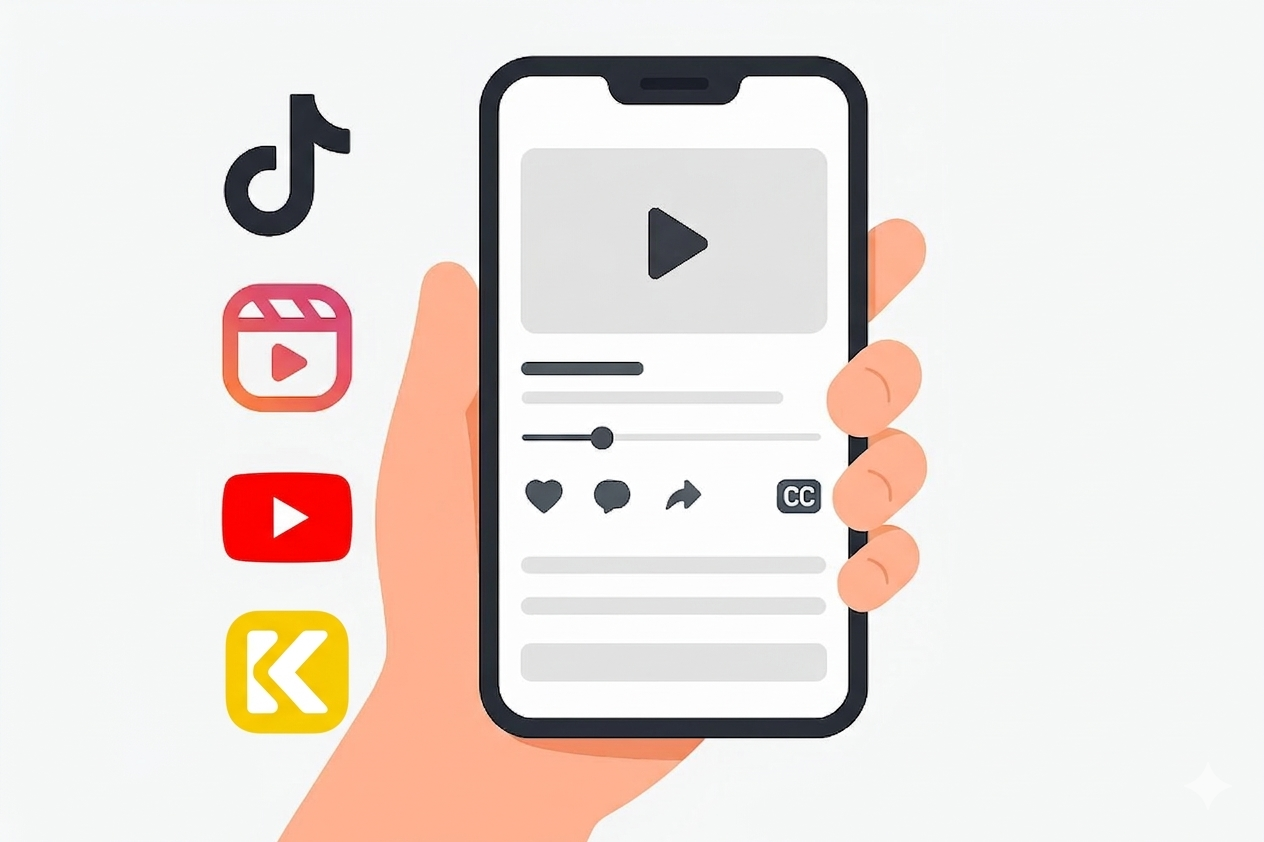
Auto-generated captions have become a default feature across every major short-form video platform. TikTok, Instagram Reels, and YouTube Shorts all use AI-powered speech recognition to overlay subtitles on videos automatically — often without the viewer or creator asking for them.
While captions serve an important accessibility purpose, they're not always welcome. Sometimes the transcription is wildly inaccurate. Sometimes the text blocks the visuals. And sometimes you simply want a cleaner viewing experience without text crowding the screen.
This guide covers every method available in 2026 to turn off, hide, edit, or remove captions — whether you're a viewer who wants fewer distractions or a creator who needs full control over how your content appears. We'll walk through each platform step by step, explain the difference between soft captions and hard-burned text, and cover common issues that trip people up.
Before You Start: Soft Captions vs. Hard-Burned Text
This is the single most important distinction to understand before you try to turn anything off.
Soft captions (also called closed captions or auto-captions) are overlay text generated by the platform. They sit on top of the video and can be toggled on or off by the viewer or removed by the creator. These are what TikTok, Instagram, and YouTube generate automatically using speech recognition.
Hard-burned text (also called open captions or hardcoded subtitles) is baked directly into the video's pixels. It was added during the editing process — in apps like CapCut, Premiere Pro, or the platform's own text editor — and is permanently part of the video file. No toggle, setting, or menu can remove it because it's not a separate layer; it's part of the image itself.
If you've followed every step in this guide and the text still won't disappear, you're almost certainly dealing with hard-burned subtitles. The only way to remove those is to re-edit the original video file or use AI-based video editing tools designed for subtitle removal.
How to Turn Off Captions on TikTok
TikTok's auto-caption system generates subtitles using speech recognition and displays them as a toggleable overlay. Here's how to manage them as both a viewer and a creator.
As a Viewer: Hide Captions While Watching
TikTok offers two methods to hide auto-captions while you're scrolling through your feed.
Method 1 — Long-press method (per video):
Open any TikTok video that has auto-captions displayed. Long-press on a clear area of the video screen (not on the caption text itself). A menu will appear — tap "Captions and translations." Toggle "Show captions" off. The captions will disappear from that video immediately.
This is a per-video action in some regions and app versions, meaning you may need to repeat it. However, many users report that once disabled, it stays off for subsequent videos as well.
Method 2 — Tap the caption directly:
If you can see auto-generated captions on screen, tap directly on the caption text. A "Hide Captions" button should appear. Tap it, and the subtitles will disappear.
Method 3 — Settings path:
Open your TikTok profile and tap the three-line menu icon in the top right. Go to "Settings and privacy." Tap "Accessibility." Look for the "Always show auto-generated captions" toggle and switch it off. This disables auto-captions globally for all videos you watch.
Note that the exact wording and menu paths can vary depending on your region, language, and app version. If you don't see these options, make sure your TikTok app is updated to the latest version.
As a Creator: Remove or Edit Captions on Your Videos
Creators have more control over captions, but the options depend on whether you're still in the creation process or the video is already published.
Before posting:
On the post screen, tap "More options" and look for "Select video language." This controls which language TikTok uses for auto-caption generation. If you don't want auto-captions at all, avoid enabling them during the creation process.
After posting:
Open your published video. Tap on the caption overlay that appears on screen. Select "Edit captions" to modify the transcription, or remove the captions entirely. Tap "Save" when you're done.
Give the app a minute or two to process your changes. If the edits don't appear immediately, close and reopen TikTok.
Important limitation: TikTok does not currently offer a universal setting that says "never add auto-captions to any of my videos." You need to manage captions on a per-video basis. This behavior can also vary depending on your account's eligibility and the language of your content.
If you're a developer or marketer looking to manage TikTok content at scale — including caption data and video metadata — the TikTok API provides programmatic access to video details and publishing workflows. Platforms like KeyAPI offer unified API access to TikTok's data alongside 20+ other platforms, making it easier to build tools that handle content management across multiple channels without juggling separate integrations.
How to Turn Off Captions on Instagram Reels
Instagram has had auto-generated captions enabled by default on feed videos since 2022. The platform uses AI to transcribe spoken words and display them at the bottom of the video. Here's how to control them.
As a Viewer: Disable Captions Globally or Per Reel
Global setting (turn off for all videos):
Tap your profile picture in the bottom right corner. Tap the three-line hamburger menu in the top right. Go to "Your app and media" (or "Settings and privacy" depending on your version). Select "Accessibility and translations" or "Accessibility." Find "Captions" or "Captions and translations." Toggle "Show closed captions" or "Always show closed captions" off.
The exact path varies across iOS, Android, and different app versions. Instagram has reorganized these settings multiple times, so if the path above doesn't match your app, look under Settings > Account > Captions as an alternative route.
Per-reel method:
While watching a reel, tap the three-dot menu (or options icon). Select "Manage captions." Toggle captions off for that specific video.
Alternatively, some users can long-press on the caption text itself while watching a reel and tap "Hide Captions" from the pop-up menu.
Translations vs. captions: Turning off translations does not automatically turn off captions, and vice versa. These are separate settings. If you're seeing translated text on reels, go to the reel's options and manage "Translations" separately.
As a Creator: Control Captions Before and After Posting
Before posting:
When creating a new reel, look for the closed captions control in the reel's settings before you share. In the "Advanced settings" section, you'll find a toggle for "Enabled closed captions." Switch it off if you don't want auto-captions on your reel. This setting may also apply to future videos, so check back if your preference changes.
After posting:
Instagram's documentation is not entirely clear about removing closed captions from an already-published reel. Some users can access the reel's settings post-publication and toggle captions off, while others report that the only option is to delete and repost the video.
If you're a creator posting across both TikTok and Instagram, this inconsistency is frustrating. It's one of the reasons many teams turn to API-based content management solutions — they allow you to programmatically control post settings, metadata, and content properties across multiple platforms from a single dashboard, rather than manually navigating each app's ever-changing settings menus.
Text overlays are not closed captions. If you added text to your reel using Instagram's text editor or a third-party app like CapCut, that text is hard-burned into the video. The closed captions toggle only affects the platform's auto-generated subtitles, not text you placed manually during editing.
How to Turn Off Captions on YouTube Shorts
YouTube's caption system is the most mature of the three platforms, with well-documented controls for both viewers and creators.
As a Viewer: Use the CC Button
While watching a Short, tap the screen to reveal the player controls. Look for the "CC" button — it usually appears in the bottom right area of the player. Tap "CC" and select "Off" to hide captions. You can also switch between available caption languages from this same menu.
If you don't see the CC button, it may be because the Short doesn't have any caption tracks available, or because the button only appears when you pause the video. Try tapping the screen or briefly pausing playback to reveal the controls.
Disable captions globally on YouTube:
Open the YouTube app and tap your profile picture. Go to "Settings." Select "Captions." Toggle "Show captions" off.
This applies to all videos, not just Shorts. You can always re-enable it from the same path.
As a Creator: Manage Caption Tracks in YouTube Studio
YouTube gives creators robust control over subtitles through YouTube Studio.
Log into YouTube Studio (on desktop or mobile). Navigate to "Content" and select the Short you want to edit. Click on "Subtitles" in the left menu. You'll see a list of caption tracks — auto-generated, manually uploaded, or community-contributed. Delete, edit, or replace any caption track as needed.
If no subtitle track is listed, the Short may not have had auto-captions generated for it, or the platform may not support editing for that particular upload type.
Caveat: YouTube Shorts have historically had more limited caption controls than standard long-form uploads. YouTube continues to update these tools, so if an option isn't available today, it's worth checking back periodically or monitoring YouTube's creator documentation.
For creators and businesses managing high volumes of YouTube content, the YouTube Data API provides programmatic access to caption tracks and video metadata. If you're working across TikTok, Instagram, and YouTube simultaneously, a unified API platform like KeyAPI can streamline data access across all three platforms — pulling video details, engagement metrics, and content metadata through a single integration rather than maintaining three separate API connections.
Troubleshooting: Common Problems and Fixes
Even after following the steps above, you might still run into issues. Here are the most common problems and how to solve them.
Captions still visible after toggling off: You're likely dealing with hard-burned subtitles that were added during video editing. No in-app setting can remove these because the text is part of the video's pixels. Your only options are to contact the creator, re-edit the original file, or use a specialized AI subtitle removal tool.
Can't find the caption toggle: The video might not have auto-captions at all, or your app version uses different labels for the settings. Update your app to the latest version and try again. Menu paths and wording vary by region, language, and operating system.
Creator changes don't take effect: Some platforms have a processing delay. Wait a few minutes, close and reopen the app, then check again. If changes still don't apply, the platform may not support post-publish caption edits for that content type — in which case, re-uploading with the correct settings may be necessary.
Seeing double captions: This happens when the creator added text overlays (hard-burned) and the platform also generated auto-captions (soft). To fix this, turn off the auto-captions using the methods above. The hard-burned text will remain, but you'll at least eliminate the duplicate layer.
Wrong caption language: On TikTok, set the video language before publishing under "More options." On YouTube, upload a corrected SRT file through YouTube Studio. On Instagram, auto-captions generate in your app's default language and can't be changed post-publish.
Platform Comparison: Caption Controls at a Glance
Here's a quick comparison of what each platform offers as of 2026:
TikTok — Viewer toggle: Yes (long-press or tap caption). Global off switch: Yes (Accessibility settings). Creator pre-publish control: Partial (language selection). Creator post-publish edit: Yes (tap caption > edit). Creator post-publish removal: Yes.
Instagram Reels — Viewer toggle: Yes (Settings > Accessibility > Captions). Global off switch: Yes. Creator pre-publish control: Yes (Advanced settings toggle). Creator post-publish edit: Limited. Creator post-publish removal: Unclear — may require delete and repost.
YouTube Shorts — Viewer toggle: Yes (CC button). Global off switch: Yes (Settings > Captions). Creator pre-publish control: Yes (upload with or without captions). Creator post-publish edit: Yes (YouTube Studio > Subtitles). Creator post-publish removal: Yes (delete caption track).
YouTube offers the most complete and reliable caption management. TikTok is improving rapidly but still lacks a universal creator-side "no captions" default. Instagram sits in between — the viewer controls are solid, but creator-side post-publish options remain limited.
A Note on Accessibility
Before you turn off every caption in sight, it's worth pausing for a moment. Captions exist primarily as an accessibility feature. They make video content usable for people who are deaf or hard of hearing, and they're also valuable for the large number of viewers who watch videos with the sound off — research suggests the majority of social media users watch videos without audio at least some of the time.
If you're a creator, consider improving your captions rather than removing them entirely. Fix inaccurate auto-transcriptions. Upload correct SRT files when possible. Use clear, readable text styles if you add manual subtitles. Poor captions are a problem, but no captions at all can exclude a significant portion of your audience.
Accessibility guidelines like WCAG 2.2 and regulations like Section 508 in the United States set standards for caption quality and availability. If you're creating content for a brand, business, or public-sector organization, caption compliance may be a legal requirement, not just a best practice.
Developer Perspective: Managing Captions at Scale
If you're managing content across multiple platforms — whether for a brand, an agency, or a creator network — manually toggling captions on each video across each platform doesn't scale. This is where API-based workflows become essential.
The TikTok API provides access to video metadata and publishing controls that can be integrated into content management pipelines. YouTube's Data API offers similar capabilities with even more granular subtitle management.
For teams that need to work across TikTok, Instagram, YouTube, and other platforms simultaneously, KeyAPI provides a unified REST API that connects to 20+ platforms through a single API key. Instead of building and maintaining separate integrations for each platform's caption and content management tools, you can access video data, engagement metrics, and content metadata from one endpoint — saving development time and reducing the complexity of multi-platform content operations.
Final Thoughts
Turning off captions on TikTok, Instagram Reels, and YouTube Shorts is straightforward once you know where to look — the challenge is that each platform puts the controls in slightly different places and updates them frequently.
The key takeaways: long-press or tap the caption on TikTok, use the Accessibility settings on Instagram, and look for the CC button on YouTube Shorts. If captions won't disappear no matter what you try, you're dealing with hard-burned text that's permanently embedded in the video.
Whether you're a viewer who wants a cleaner experience or a creator who needs precise control over your content's appearance, the tools are there. You just need to know which menu to open.